一、运行环境
Meter Helper 当前支持以下正式客户端平台。最低版本与发布构建配置保持一致:
| 平台 | 当前最低版本 | 备注 |
|---|---|---|
| Windows | Windows 10 / 11 | 桌面端;可从本网站下载管理员正式发布的版本 |
| Android | Android 5.0 (API 21)+ | BLE 权限要求随 Android 版本变化 |
| iOS | iOS 15.0+ | 项目 Podfile 与 Xcode Deployment Target 已统一为 15.0 |
| HarmonyOS | HarmonyOS API 12 构建基线 | 实际安装范围以当前 HAP/应用市场声明为准 |
硬件要求:使用 BLE 仪表时设备需具备蓝牙低功耗能力;巡检拍照需可用摄像头;串口/本地中转等能力会根据平台和管理员配置显示。
二、安装与启动
Windows 安装
在官网首页“软件下载”区域下载管理员正式发布的 Windows ZIP/安装包,按发布说明完成安装或升级。
Android 安装
- 从华为应用市场(AppGallery)搜索 "Meter Helper" 下载安装,或从发布渠道获取 APK 文件。
- 若使用 APK 安装,请先在系统设置中开启"允许安装未知来源应用"。
- 安装完成后,点击桌面图标 "Meter Helper" 启动应用。
- 首次启动时,系统将请求蓝牙、位置等权限,请点击"允许"。
iOS 安装
从 App Store 搜索 "Meter Helper" 下载安装,安装后首次打开会弹出蓝牙和定位权限请求,请允许。
HarmonyOS 安装
从华为应用市场下载 "Meter Helper"。首次启动需授权蓝牙、定位和相机权限。
首次启动说明
首次启动后,应用会进行以下初始化操作:加载设备配置文件、初始化本地数据库、检查语言设置。此过程通常只需 1–2 秒。如初始化失败,应用会显示错误提示页面,请尝试重新启动。
三、界面总览
功能入口会根据当前平台、账号状态、权限和管理员配置动态显示,不再固定为 5 个标签页。移动端主要使用底部导航,Windows 使用适合桌面的导航布局。
| 功能入口 | 功能概述 |
|---|---|
| 远程采集 | 查看/采集服务器设备数据(按配置显示) |
| 本地采集 | BLE、串口或本地中转连接与采集 |
| 轻量采集 | 简化现场采集流程(按配置显示) |
| 巡检采集 | 测试点、定位、照片水印与巡检记录 |
| 报告 | 查看本地/服务器报告并下载或分享 |
| 个人中心 | 账号、设备、同步、语言、布局和软件更新 |
四、核心功能说明
4.1 蓝牙扫描与连接
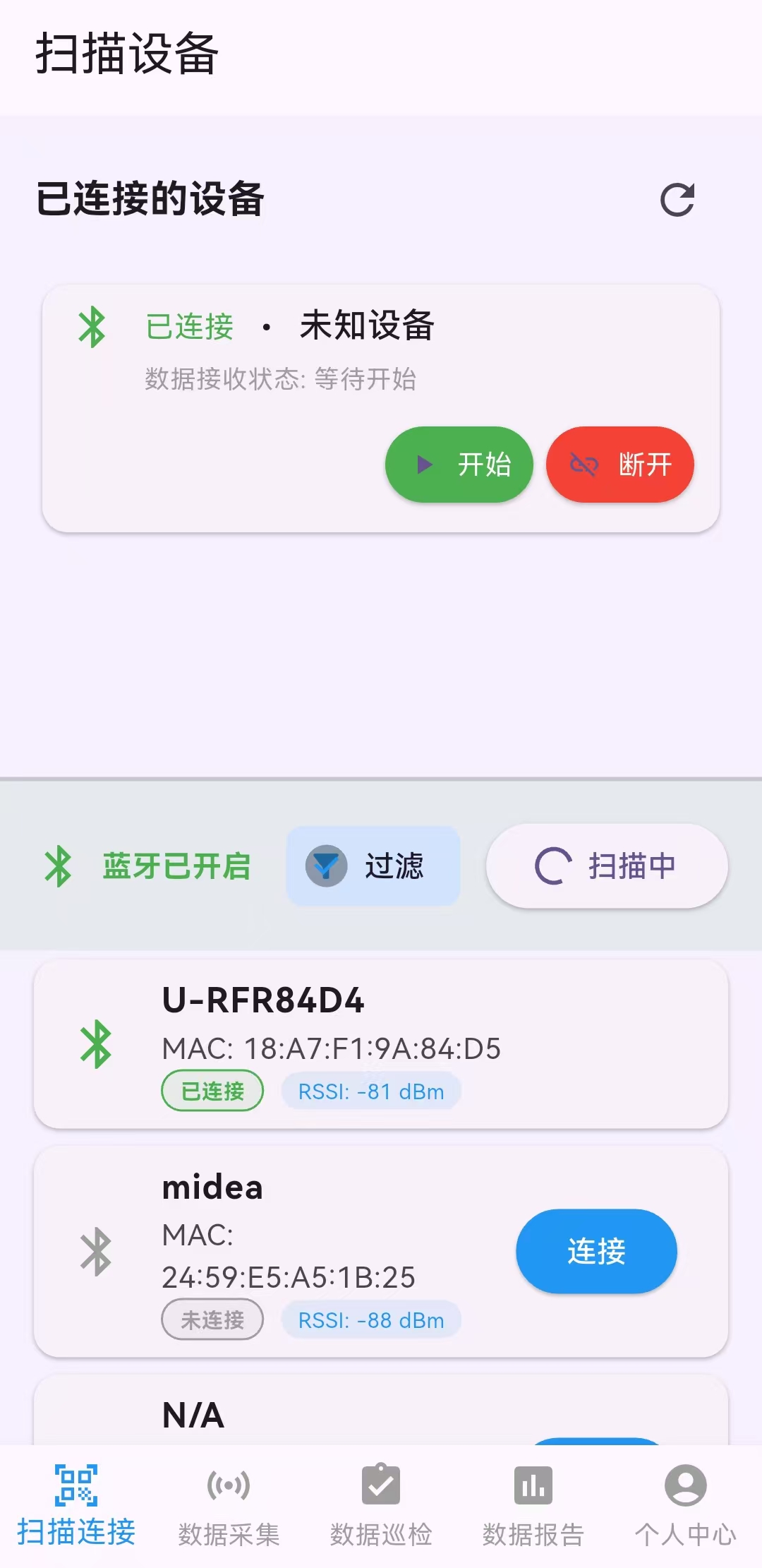
通过蓝牙低功耗(BLE)扫描附近的检测仪表设备,建立无线连接后实时接收测量数据。
使用步骤
- 确保手机蓝牙和位置服务已开启。
- 进入"扫描连接"页面,系统自动开始扫描附近设备。
- 在列表中找到目标设备,点击设备名称即可发起连接。
- 连接成功后,设备状态变为"已连接",将自动开始数据采集。
4.2 实时数据采集
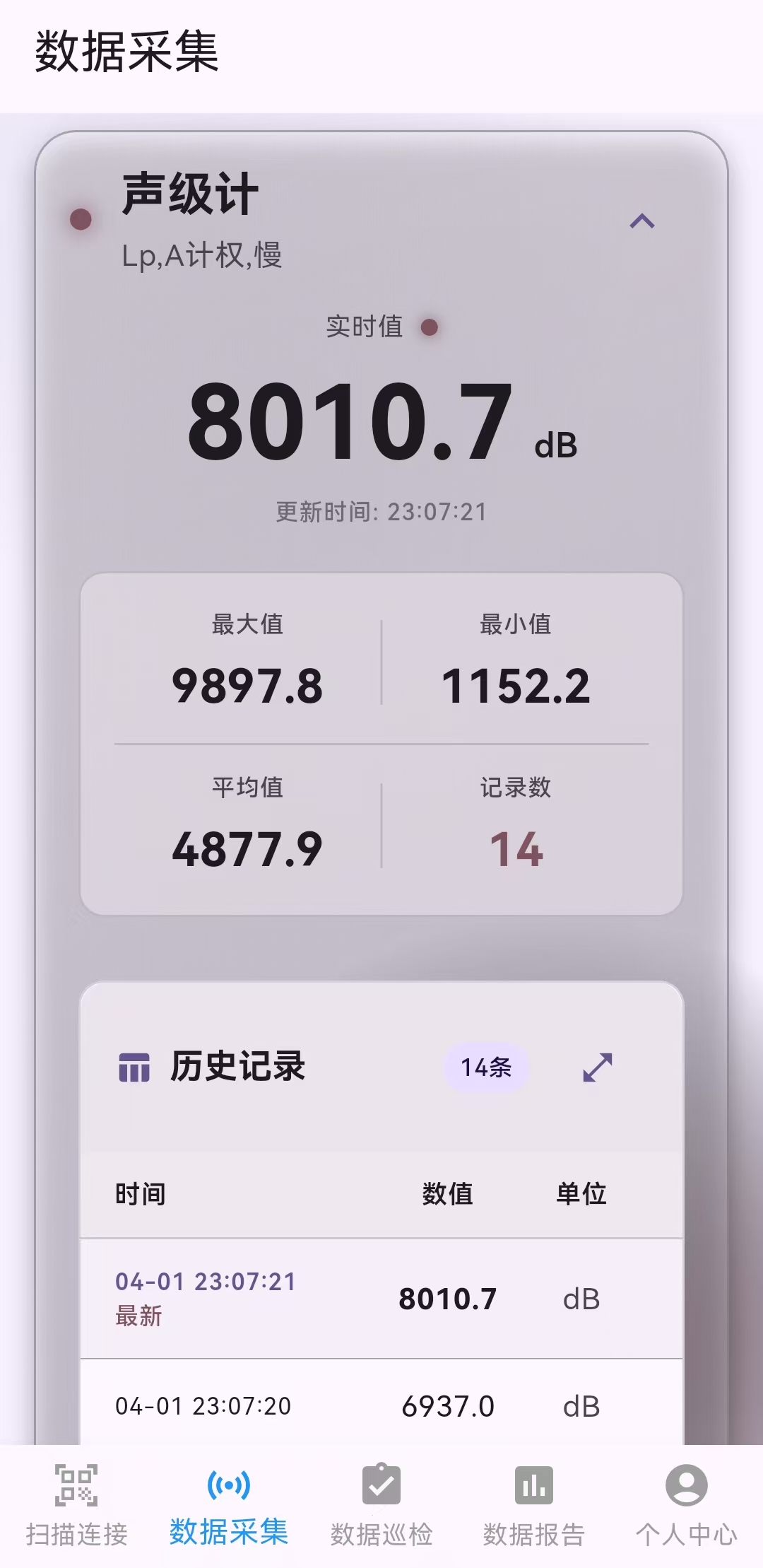
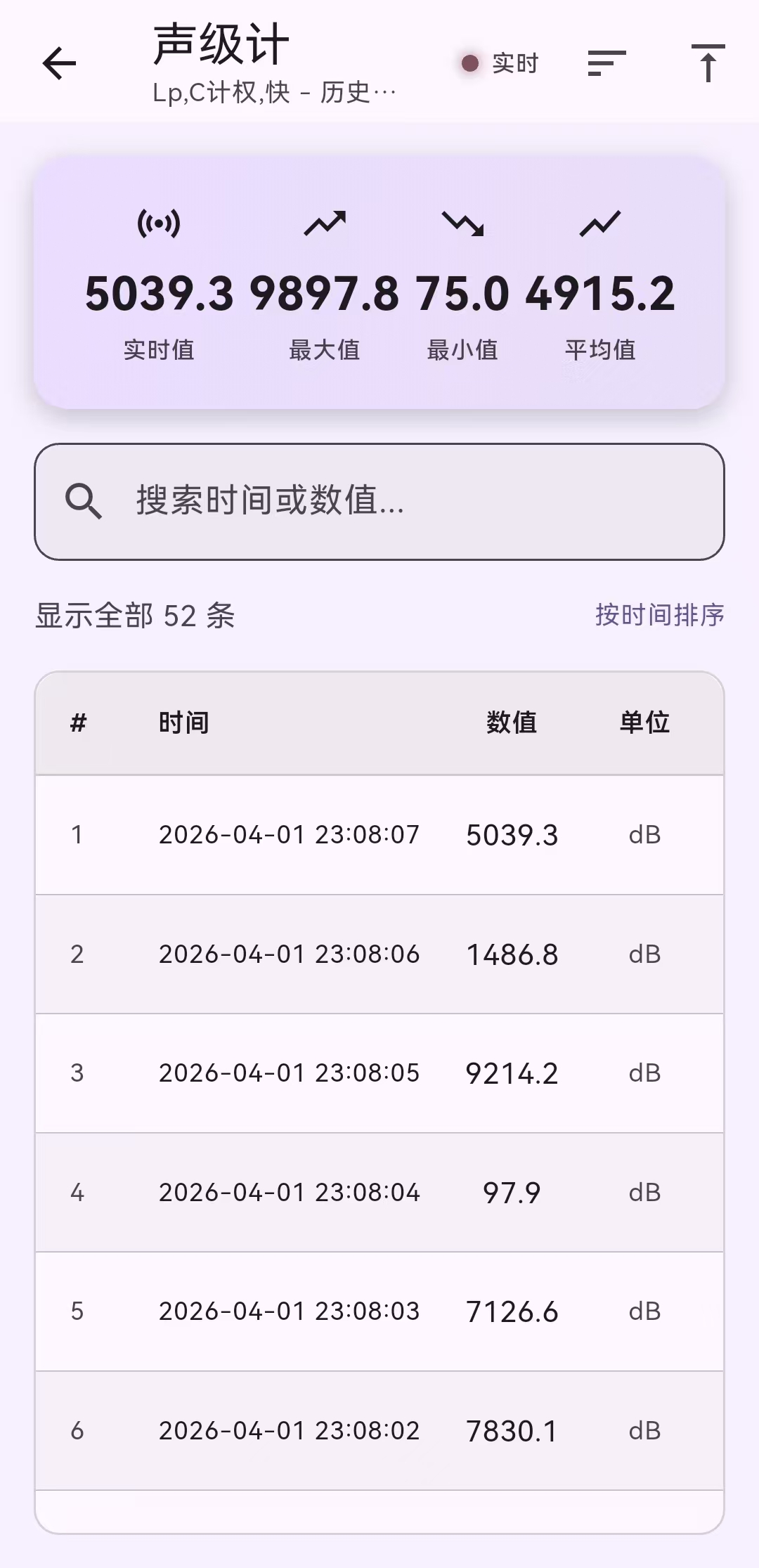
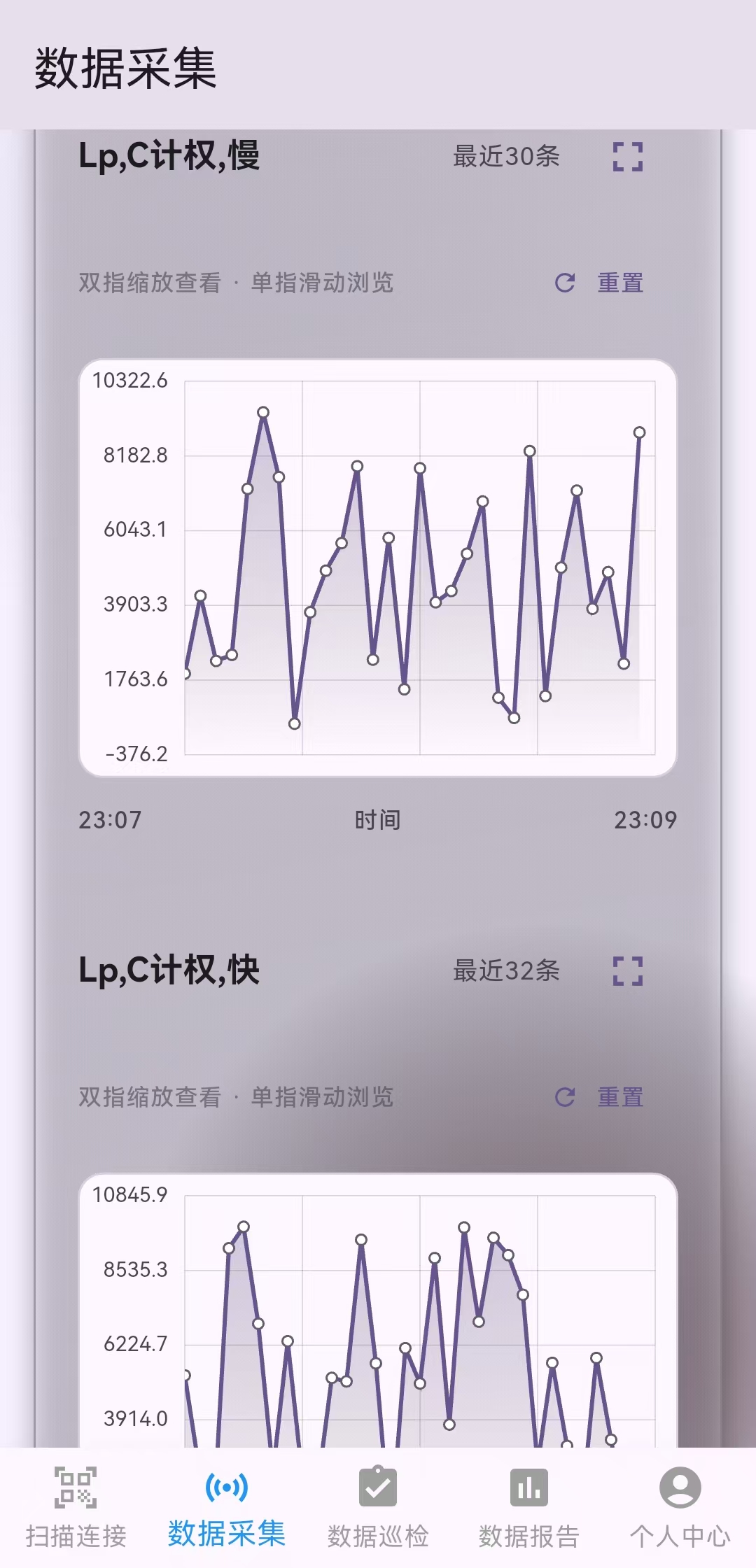
连接设备后,自动采集转速(RPM)、温度、湿度等数据,以设备卡片形式实时显示,并提供图表可视化。
使用步骤
- 在"扫描连接"页面成功连接设备后,切换到"数据采集"页面。
- 每个已连接设备会显示为一张可展开的卡片,包含当前值、最小值、最大值和平均值。
- 点击卡片可展开查看数据趋势图表,支持缩放和滚动。
- 数据按设备 ID 和测量单位自动分组。
精简模式
在"个人中心 → 设置"中可开启精简模式,将以原始数据列表形式显示。
4.3 巡检采集
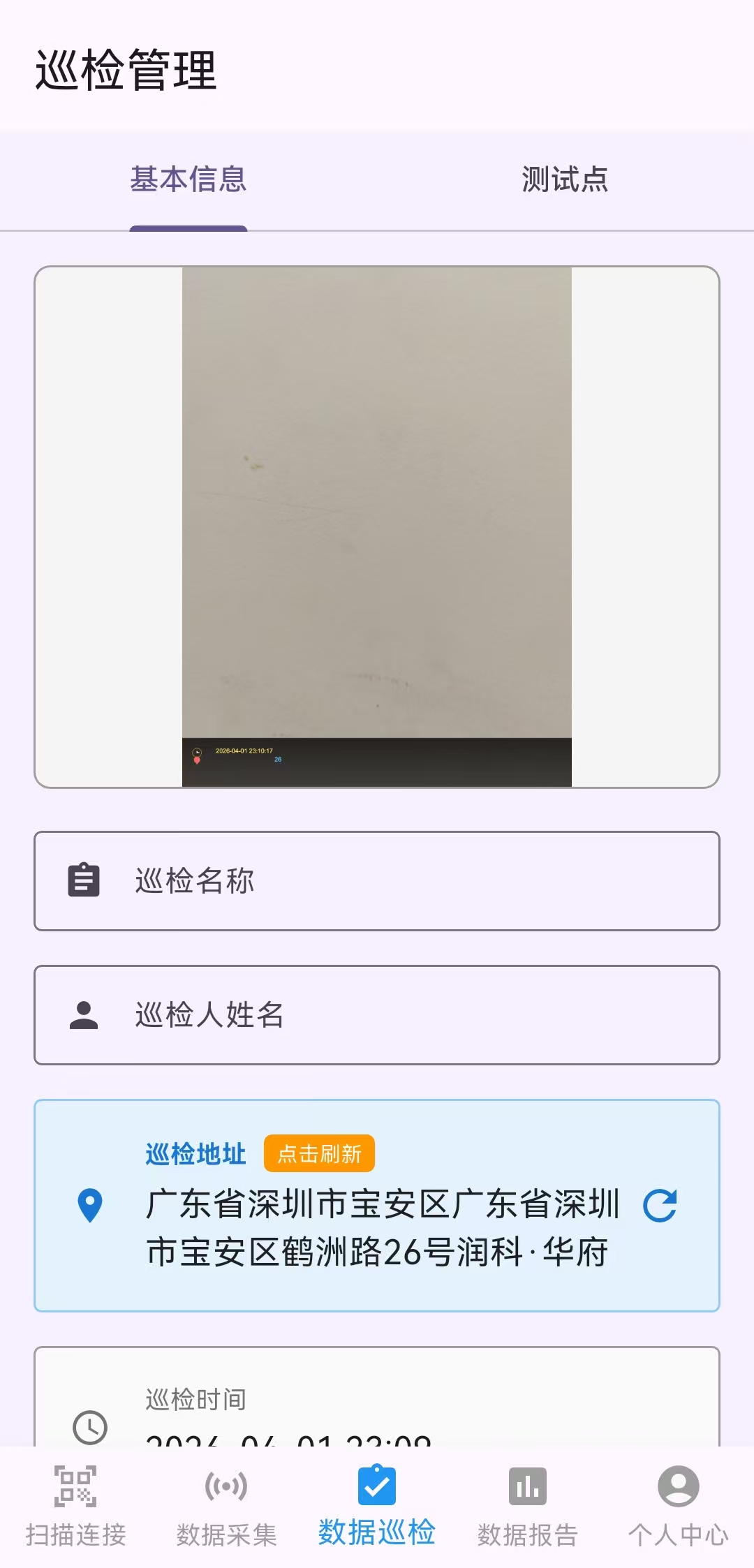
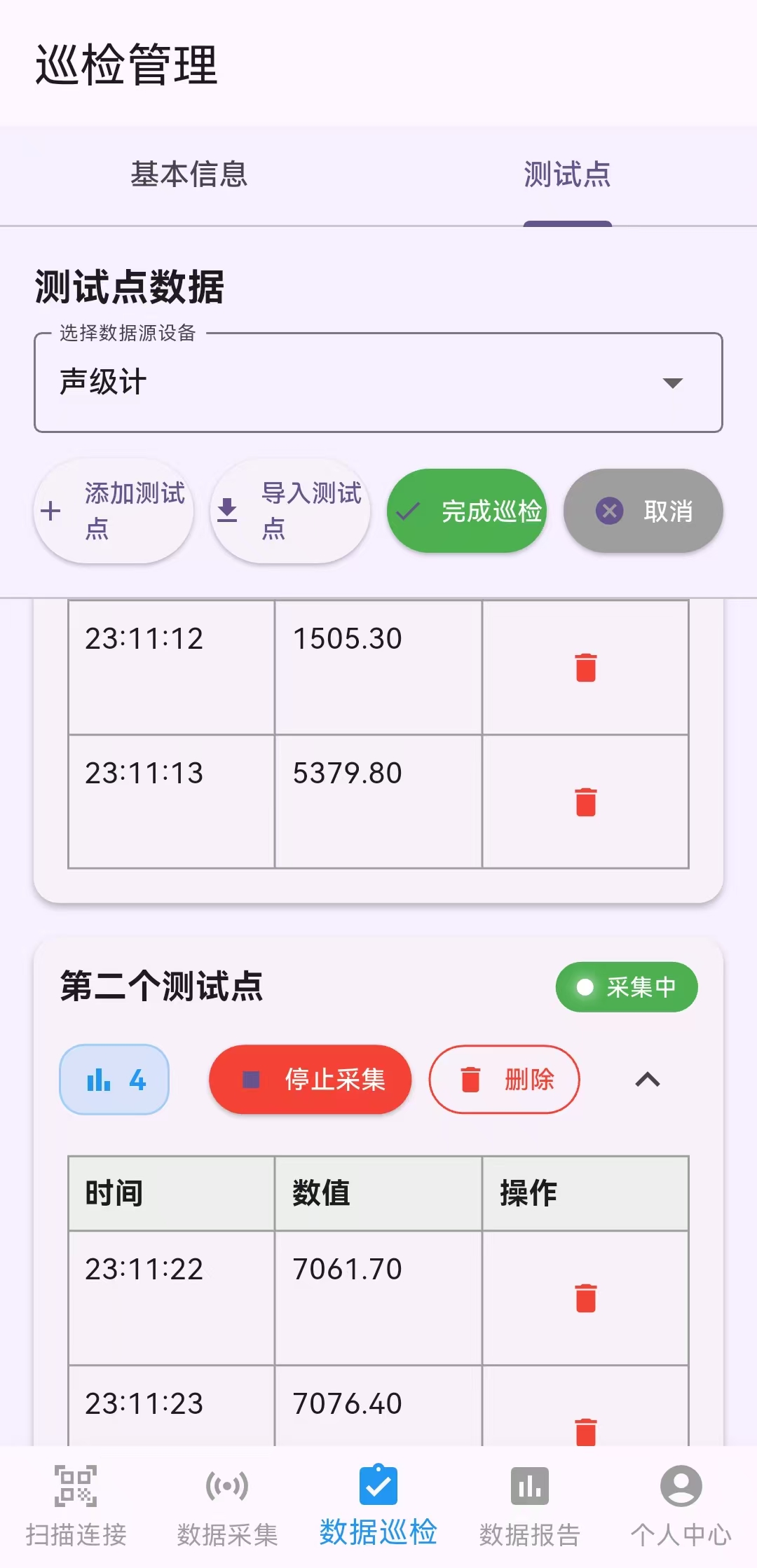
提供完整的巡检工作流:创建巡检任务,配置检测点位,采集现场数据,拍照记录,生成巡检文档(Word 格式)。
使用步骤
- 在"个人中心 → 设置"中确保"启用巡检功能"已开启。
- 切换到"巡检采集"页面,点击"新建巡检"。
- 填写巡检基本信息:巡检名称、巡检人员、时间、位置。
- 配置检测点位:选择需要检测的测量点。
- 开始巡检:系统自动采集数据,可随时拍照记录现场情况。
- 完成后保存巡检记录,可在"数据报告"中查看和导出。
导出 Word 文档
巡检记录支持导出为 Word 文档(.docx 格式),包含巡检数据、照片、签名字段(检测人/审核人/巡检人)等内容。
4.4 数据报告
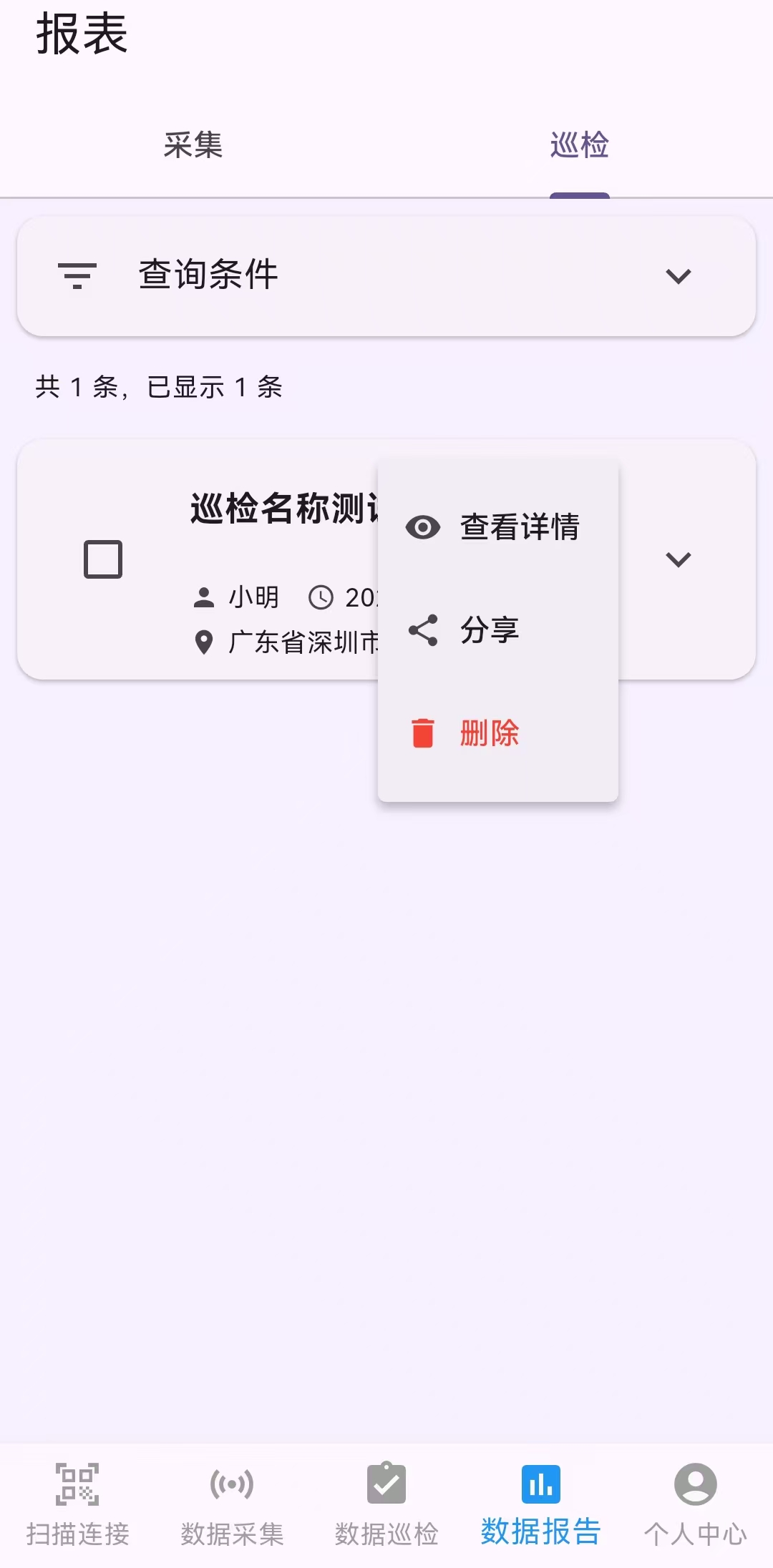
汇总查看历史采集数据和巡检记录,提供查询筛选和详情查看功能。
报告类型
- 数据采集报告:按时间和设备筛选,查看采集数据的统计信息。
- 巡检采集报告:查看巡检任务列表及各检测点的详细数据。
- 原始数据报告:精简模式下的原始采集数据列表。
4.5 个人中心与设置
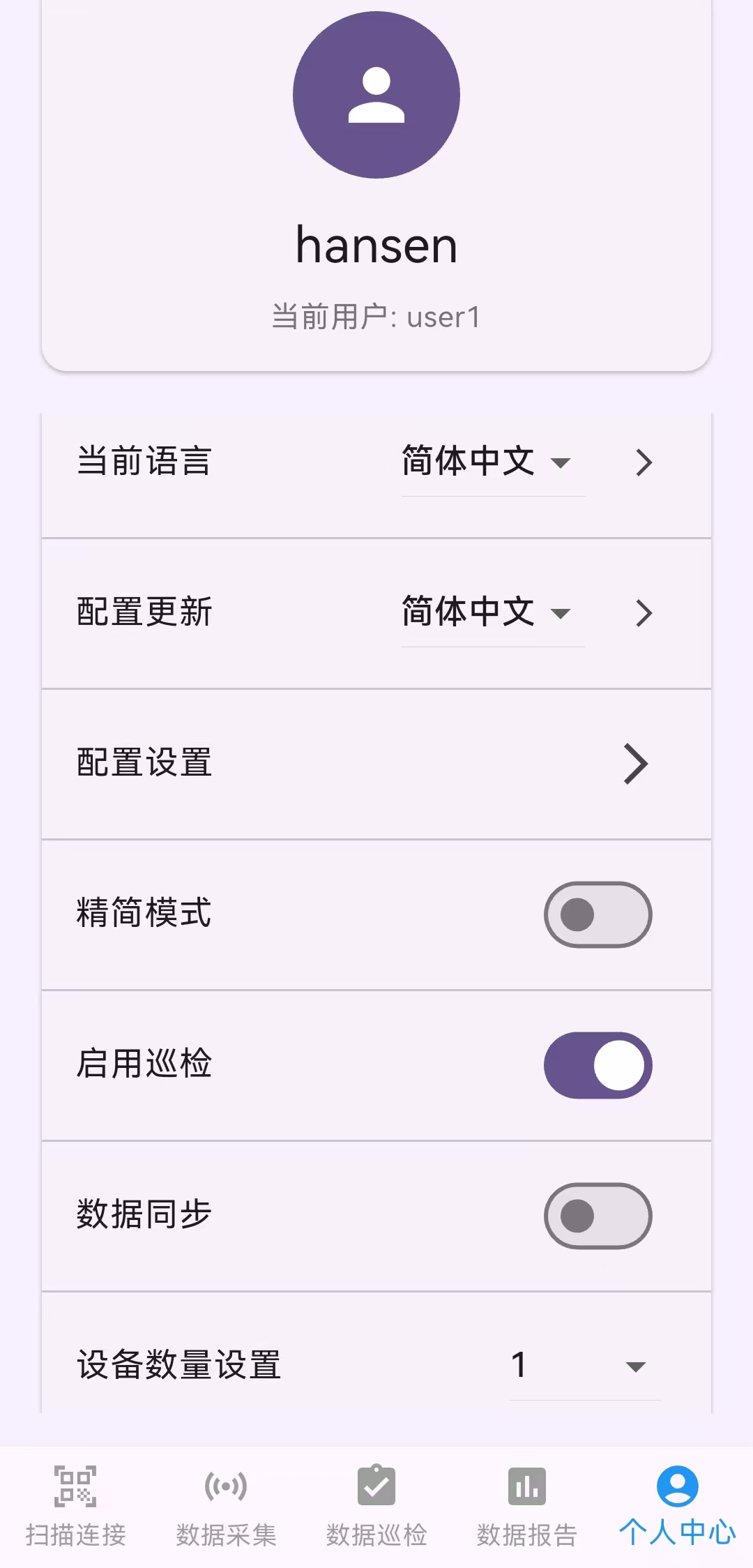
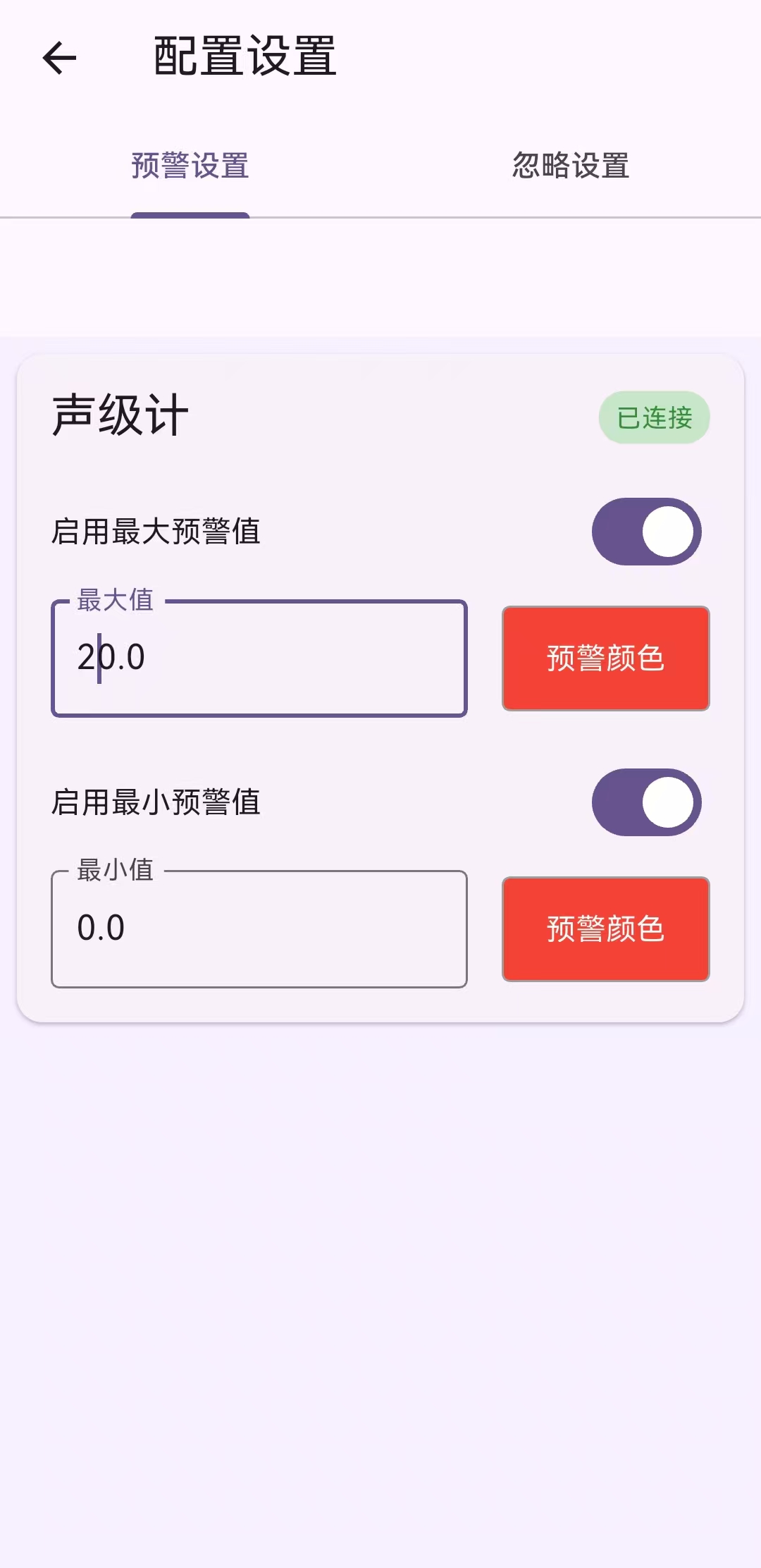
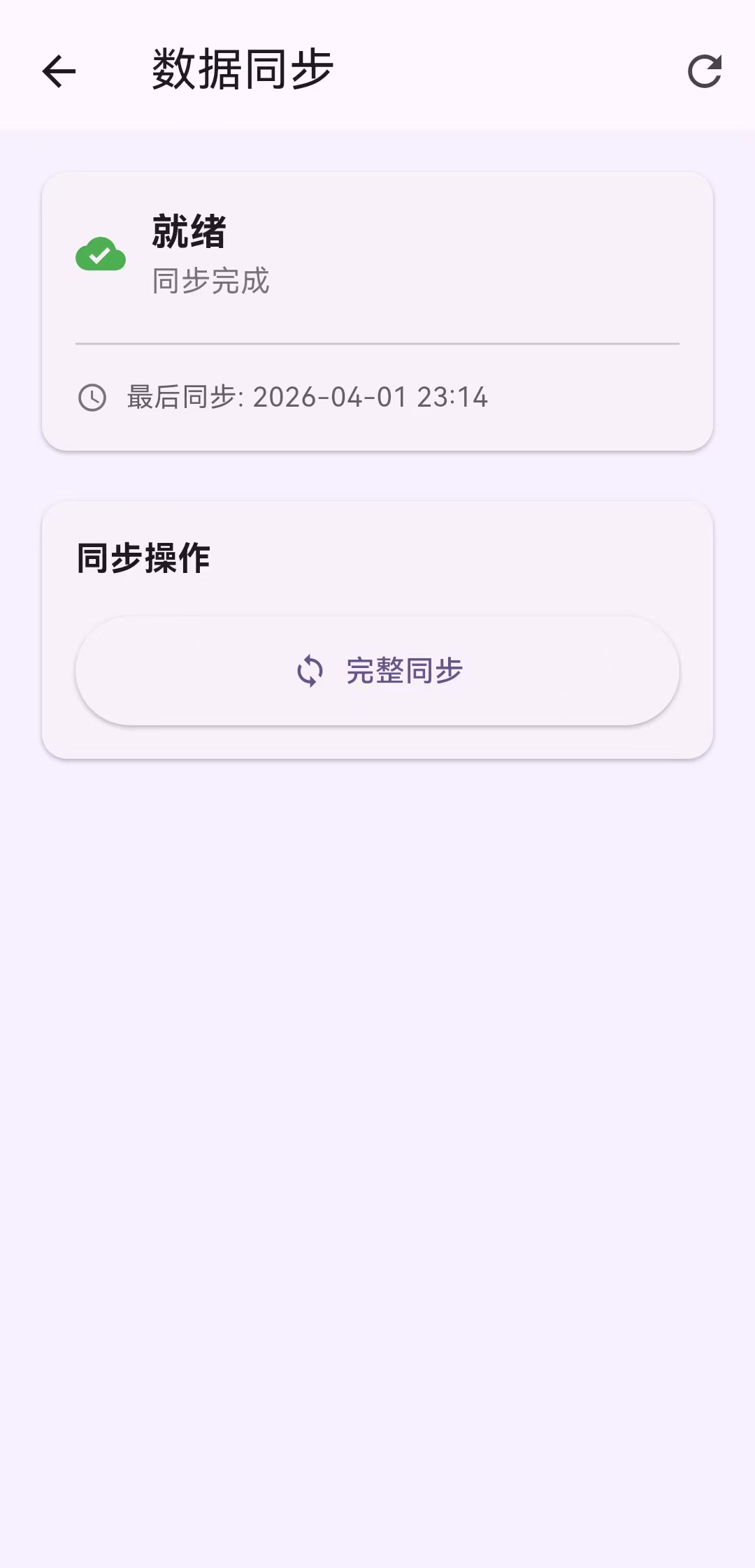
管理用户账号、应用设置和数据同步。
| 功能 | 说明 |
|---|---|
| 登录/注销 | 使用账号密码登录服务器,获取同步权限。 |
| 语言切换 | 支持中文(简体)和英文。 |
| 主题切换 | 多种 Material Design 主题可选。 |
| 启用巡检 | 开启或关闭巡检功能模块。 |
| 精简模式 | 简化数据采集界面,降低资源占用。 |
| 数据同步 | 上传本地数据至服务器,下载服务器数据。 |
| 设备数量 | 设置允许同时连接的最大设备数。 |
| 报警/忽略值 | 配置数据报警阈值和忽略值。 |
| 配置更新 | 检查并更新设备配置文件版本。 |
4.6 数据同步
将本地采集的数据和巡检记录上传到云端服务器,也可从服务器下载数据,实现多设备间数据同步。
使用步骤
- 在"个人中心"中确保已登录账号。
- 进入"数据同步"页面,选择"上传"或"下载"操作。
- 上传时,App 会按照当前同步策略分批发送;遇到临时网络故障会自动重试,本地数据在服务器确认前不会被当作已同步。
- 同步完成后,页面会显示同步结果及进度信息。
五、常见问题与故障排查
Q1: 无法扫描到蓝牙设备
- 确认手机蓝牙已打开。
- 确认已授予系统要求的蓝牙/附近设备权限;Android 11 及更早版本可能还需要位置权限才能扫描 BLE。
- 确认待连接仪表已开机并处于可被发现状态。
- 尝试关闭并重新开启手机蓝牙后重试。
Q2: 无法登录或连接服务器
- 确认手机已连接互联网(Wi-Fi 或移动数据)。
- 确认服务器地址是否正确(默认:meterhelper.cn)。
- 检查账号密码是否正确,区分大小写。
- 如使用自建服务器,确认服务器运行正常且网络可达。
Q3: 数据不同步
- 确认已登录账号。
- 手动进入"数据同步"页面执行同步操作。
- 检查网络连接是否稳定。临时网络故障会按当前同步策略自动重试。
- 如果持续失败,请尝试退出登录后重新登录再同步。
Q4: 应用启动失败
- 尝试强制关闭应用后重新打开。
- 确认手机存储空间充足。
- 如问题持续,尝试卸载后重新安装(注意:本地数据可能丢失)。
Q5: 界面语言不正确
在"个人中心 → 语言设置"中切换为中文或英文。切换后界面将自动刷新。
六、注意事项与使用建议
数据安全
- 建议定期同步数据至服务器,避免数据仅存储在本地导致丢失。
- 巡检结束后及时保存记录,避免意外退出导致数据丢失。
性能建议
- 同时连接设备过多可能影响数据采集稳定性,建议根据实际需求在"设置"中调整设备数量。
- 如设备性能较低,建议开启"精简模式"以减少界面动画和资源占用。
蓝牙连接
- 确保仪表设备与手机距离不超过 10 米(视具体设备而定)。
- 不要在蓝牙设置中手动配对,直接在应用中扫描连接即可。
巡检操作
- 拍照时确保光线充足、照片清晰,照片会嵌入导出的 Word 文档中。
- 巡检导出的 Word 文档包含签名栏,可打印后手动签名。
七、联系方式与技术支持
如在使用过程中遇到问题或有功能建议,请通过以下方式联系我们:
| 渠道 | 信息 |
|---|---|
| 邮箱 | 1715348327@qq.com |
| 官方网站 | meterhelper.cn |